Set up system workload
Go to All entities > Workloads > + Create a workload. For more information, see Create and define workloads.
Enter a name for your workload and select an account from the dropdown list.
Next to Entity Type = All, select the + icon and enter
sap.system = {SAP System SID}in the filter bar.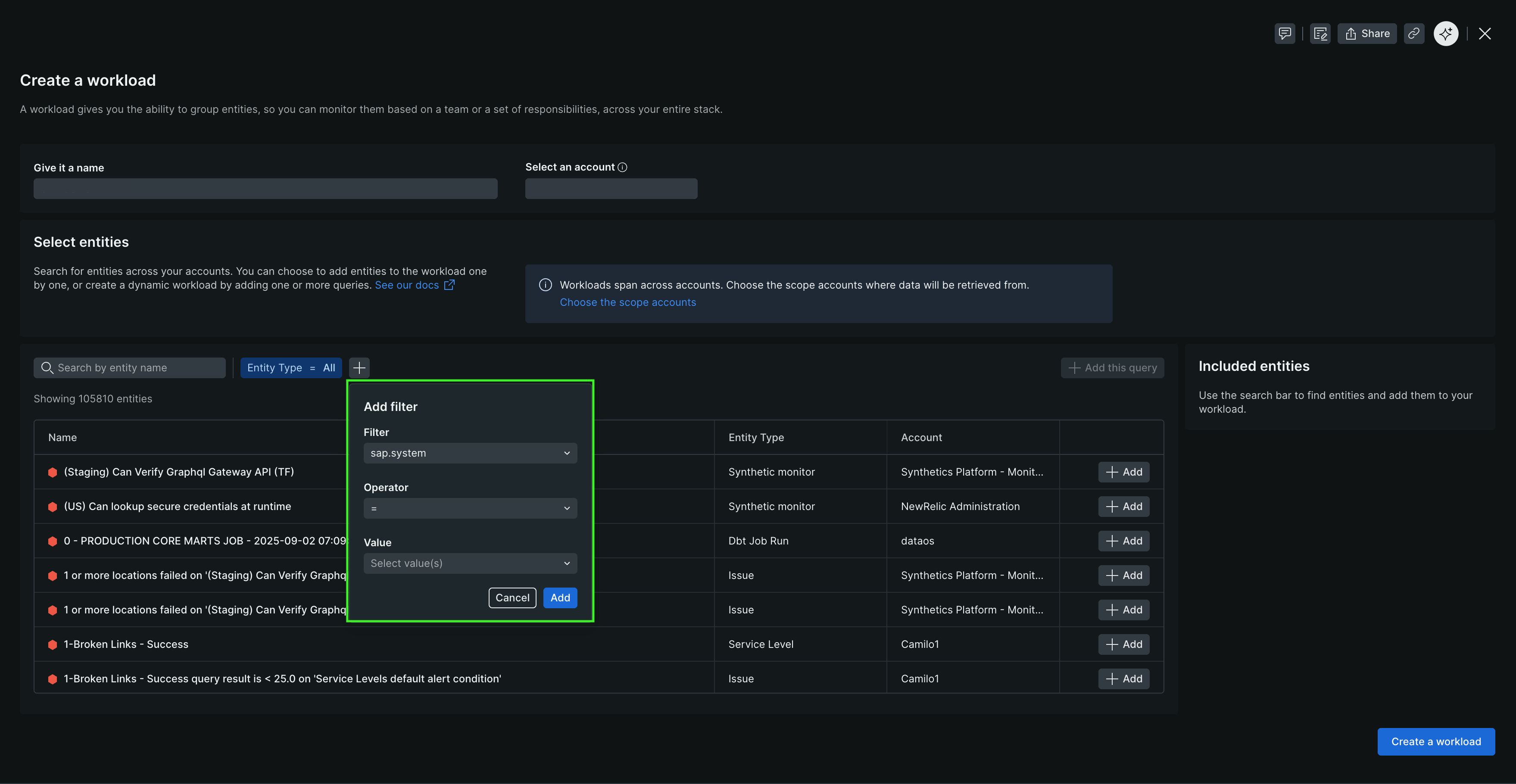
Select + Add this query to add the query to your workload definition.
Select Create a workload.
Your new workload appears in All entities and includes all entities tagged with your SAP system.
Install service pack
Service packs are delivered as .SAR files with the naming convention K-<Version Number>SP<SP Number>IN<Software Component>.SAR.
- Install the service pack using transaction
SPAM. - Load the new configuration template from client 000.
- Navigate to Install New Release and Patch > Copy Template Tables from Client 000.
- Generate the new data provider configurations by following the steps in Install New Release and Patch > Generate Configuration for New Data Providers.
- Select Install New Release and Patch > Verify Installation Completeness to verify the installation.