New Relic monitoring for SAP includes a list of out-of-the-box monitoring components including dashboards, alert policies, and the IDOC Explorer. Follow the instructions below to locate and install them.
Before you begin
To perform these tasks, you must have New Relic Admin privileges on the account.
Important
For the SAP Cockpit dashboard, you must create a lookup table named NR_LKUP_SYSTEM before installation.
Install dashboards
Create lookup table
Tip
Only required for the SAP Cockpit dashboard.
The SAP Cockpit dashboard uses a lookup table for SAP systems and their environments.
Create the lookup table with two columns:
SYS_IDandEnv, and save it as a CSV file. Here is a sample of the lookup file:SYS_ID,EnvGD1,DEVSD2,DEVAQ1,TestingAQ2,TestingSP1,ProdSP2,ProdGo to Log > Lookup Tables.
Click Add a table.
In the Add a lookup table sidebar, name the table to NR_LKUP_SYSTEM, and upload the CSV file. See Lookup tables for more information.
To verify the table content, use the query builder with
FROM lookup(NR_LKUP_SYSTEM) SELECT *, then click Run.
Install the dashboards
- Go to one.newrelic.com > Integrations & Agents, and search for New Relic Monitoring for SAP Solutions to automatically download all dashboards
- Alternatively, you can go to Dashboards > Recommended Dashboards, click View all, and search for SAP. See Dashboards for more information.
- Install these dashboards:
SAP Dashboards
SAP Cockpit
SAP Data Collection Monitoring
SAP Data Ingestion Estimate
Add dashboard filter
- Go to one.newrelic.com > Dashboards.
- Enable facet linking for filtering:
- Click the ellipsis (…) on the widget's upper right corner
- Select Edit to open the edit screen
- Toggle the Filter the current dashboard switch
- Facet linking can be enabled for tables, pie charts, and bar chart widgets to filter by SAP system, instance, IDOC status, jobs, etc.
Install alert policies
Go to one.newrelic.com > Alerts > Alert Policies.
Search and click New Relic Monitoring for SAP Solutions alert policy.
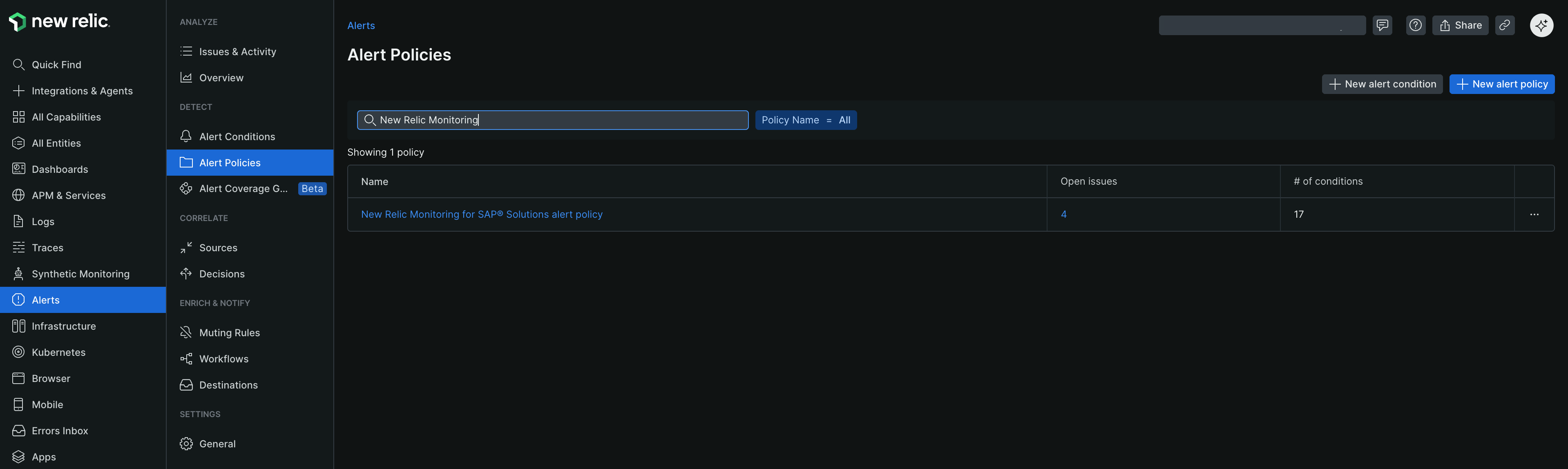
In the Alert condition tab, select the account and toggle the alert policy to Enable. See Manage your policies to know how to manage the policies.
Go back and search for Nr4sap default alert policy. Toggle on the alert condition you'd like to enable.
Install IDOC Explorer
Go to one.newrelic.com > Integrations & Agents.
Select Apps & Visualizations, and search for IDOC Explorer.
Select Manage access. Choose the account for access to the app.
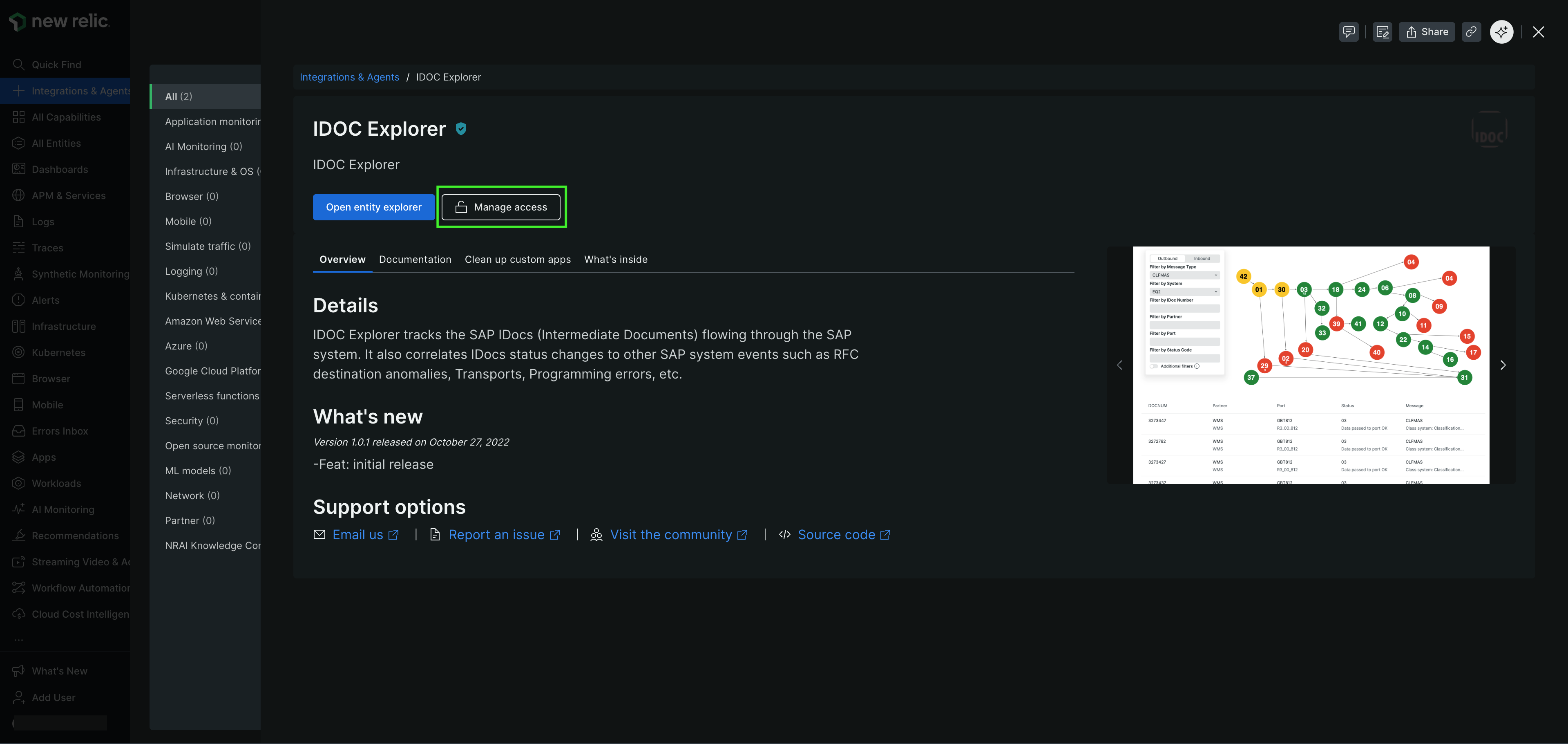
Click Update. The IDOC Explorer will be visible when viewing IDOC entities.