Use /NEWR/INSTALL menu
- Log in to the production client of the central monitoring system.
- Navigate to the SAP Easy Access root menu by typing
/nin the command field and pressing Enter. - Access the
/NEWR/INSTALLmenu by typing/n/NEWR/INSTALLin the command field.
After installing the add-on on the central monitoring system:
Ensure the installer has proper authorization to perform the configuration.
Add the parameter
/NEWR/*to the code authorization object(s) in the installer'sprofile/role.Tip
If upgrading from a previous version, refer to Upgrade from Previous Version to determine which steps are necessary.
Connect systems
Important
Complete any pending configuration steps before proceeding.
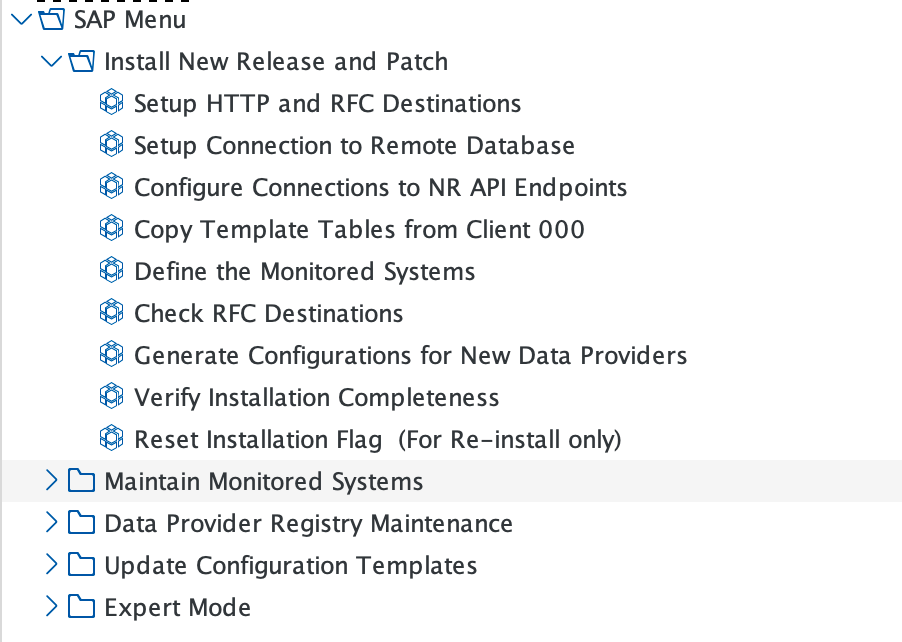
The following options are available in the /NEWR/INSTALL menu:
Set up HTTP and RFC Destinations
Use this option to invoke transaction SM59 and verify your RFC and HTTPS connections. See Create RFC for monitored systems and Set HTTP destination to New Relic cloud.
Set up Connection to Remote Database
- Use SAP transaction
DBACOCKPITto verify the setup of connections to remote HANA databases. - Ensure that a database connection is created for each remote HANA database you wish to monitor.
- For detailed instructions, see Create Database Connection.
Configure Connections to NR API Endpoints
Click New Entries.
Enter your New Relic account details:
- New Relic Account ID (optionally prefixed with SAP-)
API Ingest Key
- Metric Endpoint (see Network endpoints)
Event Endpoint
Log Endpoint
Trace Endpoint
Click Save.

Copy Template Tables from Client 000
Execute this option to copy the table from client 000 by clicking the execute icon (clock symbol). Confirm the success message appears.
Monitoring groups reference
The table below shows which data providers are included in each monitoring group and which system types they apply to.
Monitor Group | Included Data Providers | Applied to the System Type | Special Notes |
|---|---|---|---|
BIZ_DOC | Change document event for business objects | ECC systems and S/4 HANA | |
DB_KPI | Key Performance Indicators for databases, such as availability, space, etc. | All Systems, except HANA Database | |
HANA_DB | HANA Database data providers connect directly to the HANA DB | All HANA databases | Requires Database Connection |
HOST | Host metrics such as CPU, Memory, Disk Usage | All ABAP Systems | |
IDOC | IDOC events | ECC systems and S/4 HANA | |
MAXDB | Metrics for MAXDB database | Systems with MAXDB | |
MS_SQL | Metrics for Microsoft SQL Server database | Systems with Microsoft SQL Server | |
Oracle | Metrics for Oracle Database | Systems with Oracle Database | |
SAP_APPL | Events, Logs, Metrics, and Traces for SAP Application Monitoring such as RFCs, Jobs, Transactions, etc. | All ABAP Systems | |
SAP_SYSTEM | Metrics for SAP System and application server instances, monitoring such as User, System Performances, etc. | All ABAP Systems | |
CUSTOM | Any data provider added by the customer |
Tip
Maintain the list of Monitoring Groups by navigating to Expert Mode > Installation Setups > Monitoring Group Maintenance. For a complete list of data providers in each monitoring group, see the Data Providers Reference.
Define the Monitored Systems
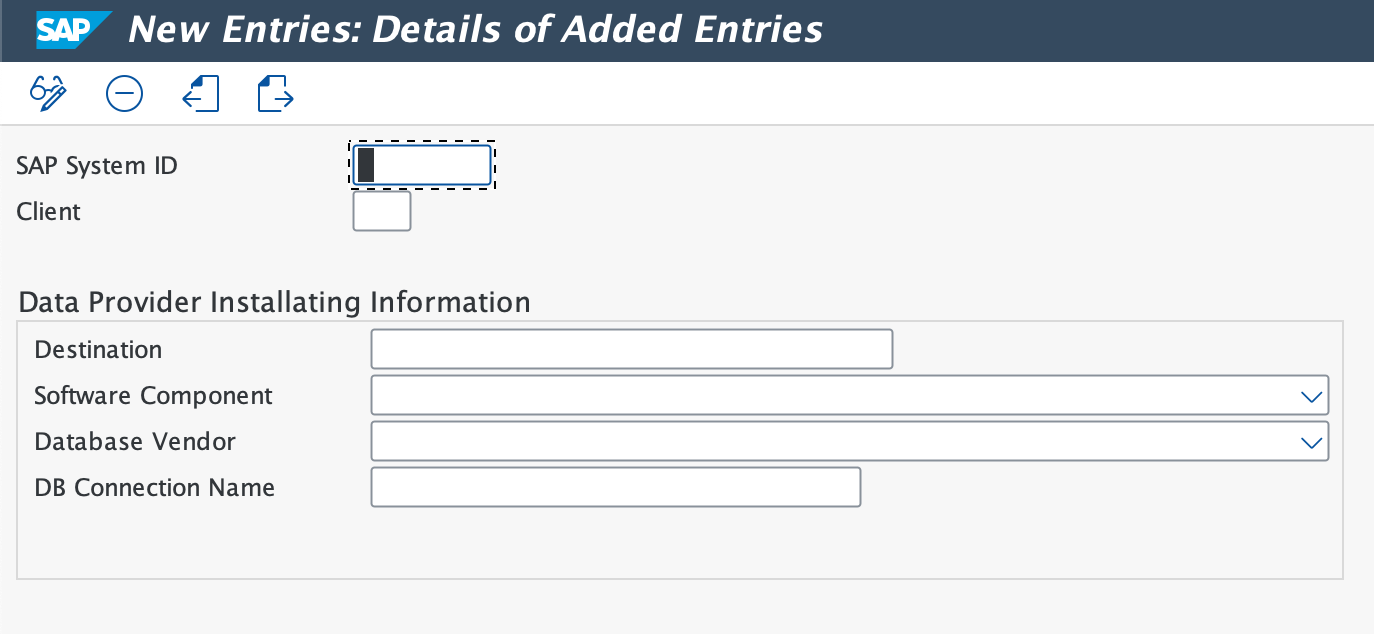
Click New Entries to enter the SAP System ID and Client number.
In Data Provider Installation Information, specify the RFC Destination, select the SAP Software Component, enter the Database Vendor, and provide the DB Connection Name (HANA database only).
Click Monitoring Group, select Yes in the dialog box to confirm.
Choose the necessary monitoring groups, and click the generate icon to complete the process.
Click BACK or the F3 key to go to the next step.
Check RFC Destinations
Use this menu option to test RFC destinations for all monitored systems and NR API endpoints, except for NONE.
Generate configuration
Generate Configurations for New Data Providers
Use this menu option to generate data providers for a new release or patch. For fresh installations, all Data Providers (DP) are generated.
On the first screen, confirm the release and patch details. Empty fields indicate pre-existing configuration.
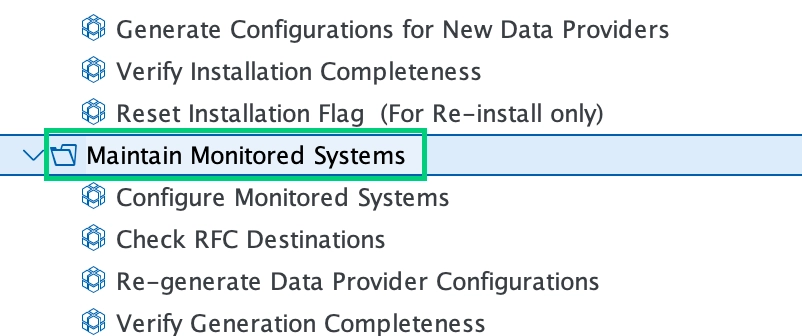
To regenerate, select Re-generate Data Provider Configurations in Maintain Monitored Systems or use Reset Installation Flag (For Re-install only) to reset the installation flag and regenerate configurations.
Verify Installation Completeness
Click Verify Installation Completeness to ensure everything is configured correctly. If any item displays a red indicator, click the execution button in the Action Needed column.
Verify configuration
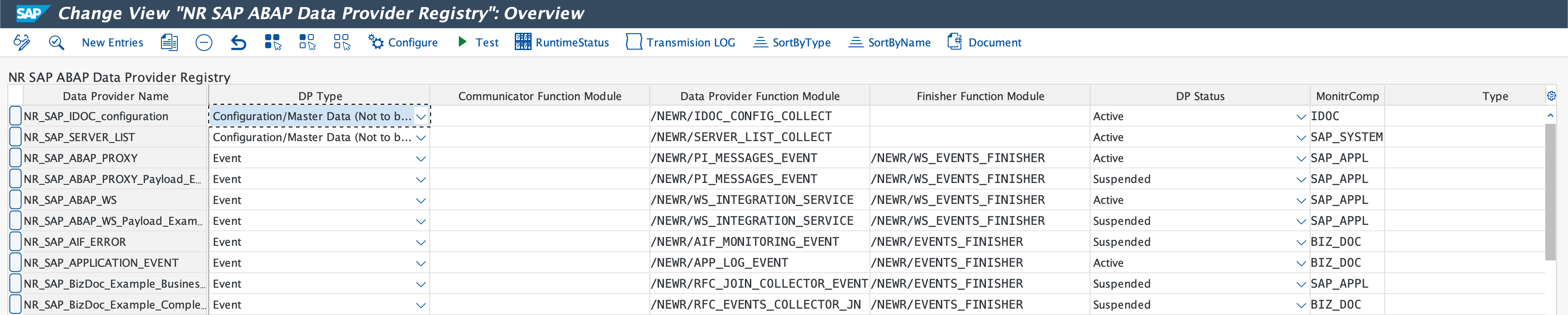
To ensure data providers are correctly configured, open the Data Provider Registry Maintenance folder.
Click Data Provider Registry, or use transaction
/n/NEWR/REGISTRY.Select a Data Provider Name and verify configuration parameters by clicking Configure.
Test the data provider by clicking TestDP. The test should complete successfully, confirming the data provider is configured correctly.