The ABAP component of NRM4SAP is packaged as a SAP add-on and can be installed using transaction SAINT on client 000.
Add-on installation file
- Initial installation: Download the add-on file
K-xxxAOIINNEWR.SARto a folder on your local PC - Upgrade from previous version: Use the file named
K-xxxAOUINNEWR.SAP
Install SAP add-on file
- Log in to client 000
- Type
SAINTin the SAP GUI command field - Navigate to Installation Package > Load Packages
- Choose the appropriate method based on where your installation file is located:
Which method should you use?
- SAR archive from frontend (Most common): Installation file is on your local computer
- SAR archive from application server: SAR file has been pre-uploaded to
/usr/sap/trans/download/ - EPS files from application server: You need to extract the SAR file into PAT files on the server first
Navigate and open
K-xxxAOIINNEWR.SARIn the Content of the compressed file popup, click Decompress
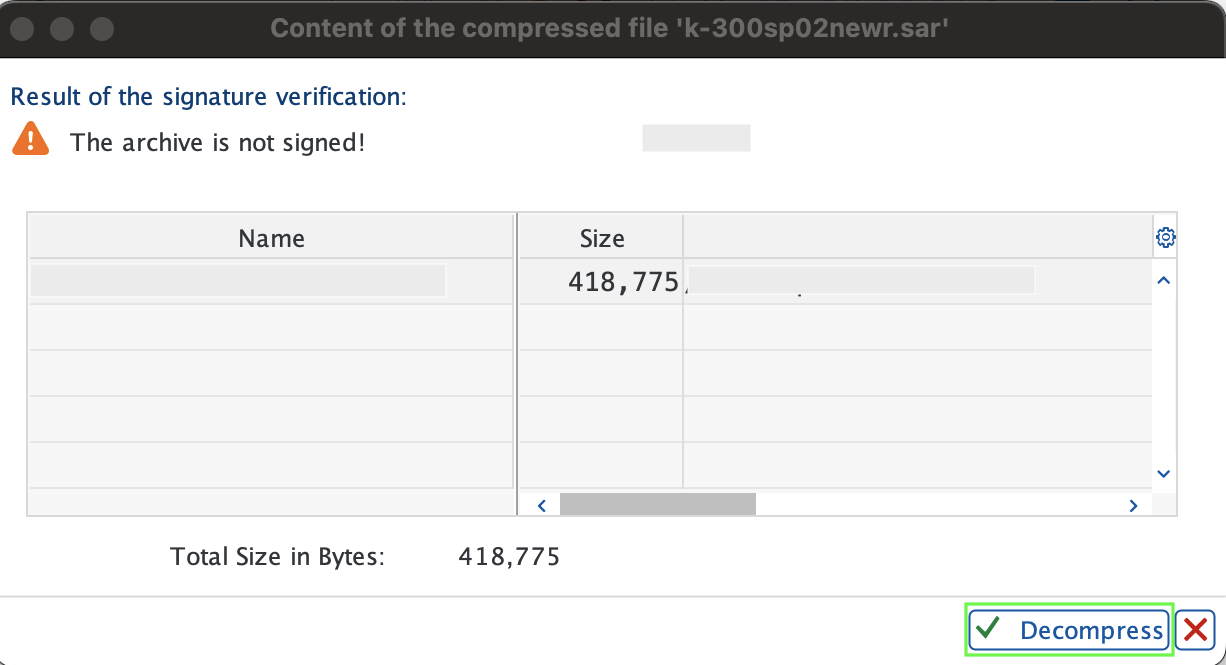
Verify the message File K-xxxAOIINNEWR.SAR successfully transferred, decompressed, and deleted appears
- Ensure there is a download directory under the trans directory on the application server (
/usr/sap/trans/download) - Copy the add-on file to this directory
Extract the SAR file into PAT files. Execute the following commands:
bash$cd /usr/sap/trans$cp /tmp/K-xxxAOIINNEWR.SAR /usr/sap/trans$SAPCAR -xvf K-xxxAOIINNEWR.SARIn the popup Do you want to upload OCS Packages from the EPS inbox?, select Yes
Ensure the OCS file is uploaded without errors
Complete the installation
Click Start, select Installable Add-on packages for your system, and click Continue
When asked Do you want to add Modification Adjustment Transports to the queue?:
- Click No for standard installation (default)
- Click Yes only if your package includes adjustment transports with specific instructions
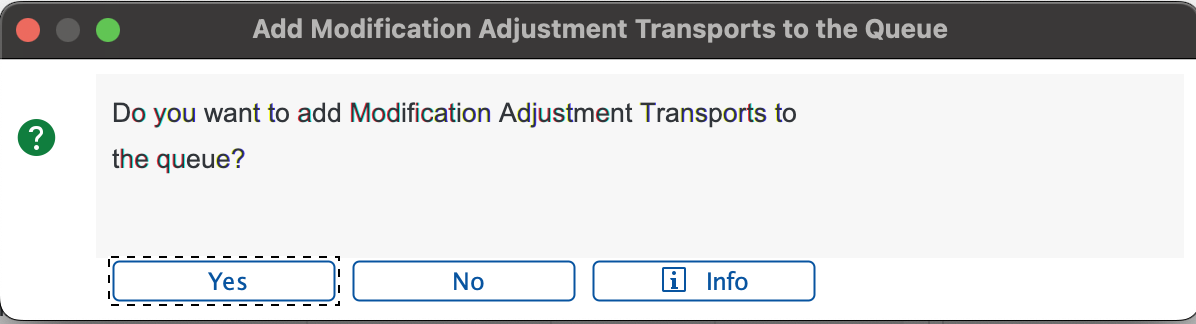
Click the green check button to proceed
Important
If the Errors during Disassembling OCS Packages page appears, click Ignore. This error is expected for certain package types and will not affect installation.
Once the package is installed, click Finish
The Sending the runtime analysis popup appears. Choose one of the following:
- Send: Opens a feedback form with the runtime analysis data in a local browser window
- Display: Displays the runtime analysis first, then opens the feedback form
- Do not send: Closes the dialog without sending runtime analysis data
Verify the installation in the Installed Components tab. The New Relic add-on should be listed with a status indicating successful installation
Log out from Client 000