The Workflow entity overview page displays detailed information about a specific workflow, including execution metrics, run history, schedules, and logs. From this page, you can run workflows manually or schedule them to run automatically.
Before you begin
Before using the APIs to trigger or schedule workflows, ensure you have:
- Workflow created: A workflow definition already deployed in your account from template or custom-built.
- Account ID: Your New Relic account ID can be found in Account settings.
- Workflow name: The exact name from your workflow definition.
- Required inputs: Values for any parameters your workflow expects.
- Secrets configured: AWS credentials, Slack tokens, or other secrets stored in secrets manager.
Access entity overview
From the Workflow Automation dashboard, click a workflow name in the Workflows tab to open its entity overview page.
ヒント
Navigation change: Clicking a workflow name now opens the entity overview page. To edit a workflow, use the Open in editor option from the row actions menu.
The entity overview page displays the following tabs:
Summary
Workflow-level metrics and information:
- Run count: Total number of times this workflow has executed
- Total steps: Number of steps executed across all runs
- Failed runs: Count of failed executions and which steps failed
- Each metric widget includes a context menu to view query, get image, or create alert condition
Run History
List of all workflow executions:
- View logs for each run
- See execution status and timestamps
- Access detailed run information
Logs
View execution logs:
- Access logs when you run a workflow from the list page
- Redirects from the View logs button after running a workflow
Run workflows via API
Use the StartWorkflowRun API to trigger workflows programmatically. This executes the workflow immediately with the inputs you provide.
Example: Invoke an AWS Lambda function
The following workflow definition invokes an AWS Lambda function and logs the output. Replace 12345678 with your New Relic account ID.
name: lambda1
workflowInputs: username: type: String defaultValue: "User" key: type: String defaultValue: "${{ :secrets:12345678:USERNAME_AWS_ACCESS_KEY_ID }}" access: type: String defaultValue: "${{ :secrets:12345678:USERNAME_AWS_SECRET_ACCESS_KEY }}" token: type: String defaultValue: "${{ :secrets:12345678:USERNAME_AWS_SESSION_TOKEN }}" region: type: String defaultValue: us-east-1
steps: - name: invoke1 type: action action: aws.lambda.invoke version: 1 inputs: awsAccessKeyId: ${{ .workflowInputs.key }} awsSecretAccessKey: ${{ .workflowInputs.access }} awsSessionToken: ${{ .workflowInputs.token }} region: ${{ .workflowInputs.region }} functionName: hello-you payload: user: ${{ .workflowInputs.username }}
- name: logOutput type: action action: newrelic.ingest.sendLogs version: 1 inputs: logs: - message: 'The lambda function message output is:${{ .steps.invoke1.outputs.payload.body }}'To start this workflow, use the following NerdGraph mutation. Before running this mutation, ensure you've stored your AWS credentials using the secretsManagementCreateSecret mutation. For more information, see secrets manager.
mutation {    workflowAutomationStartWorkflowRun(      # Specify the account where the workflow is defined      scope: { type: ACCOUNT id: "12345678" }
      # Reference the workflow definition by name      definition: { name: "lambda1" }
# Provide input values for the workflow workflowInputs: [ {key: "key" value: "${{ :secrets:testUser123_AWS_ACCESS_KEY_ID }}"} {key: "access" value: "${{ :secrets:testUser123_AWS_SECRET_ACCESS_KEY }}"} {key: "token" value: "${{ :secrets:testUser123_AWS_SESSION_TOKEN }}"} {key: "region" value:"us-east-2"} {key: "username" value: "Julien"} ] ) { runId } }Parameters explained:
scope: The account ID where your workflow definition is storeddefinition: The name of the workflow to run (must match thenamefield in your workflow definition)workflowInputs: Key-value pairs that override the default values in theworkflowInputssection of your workflow definition
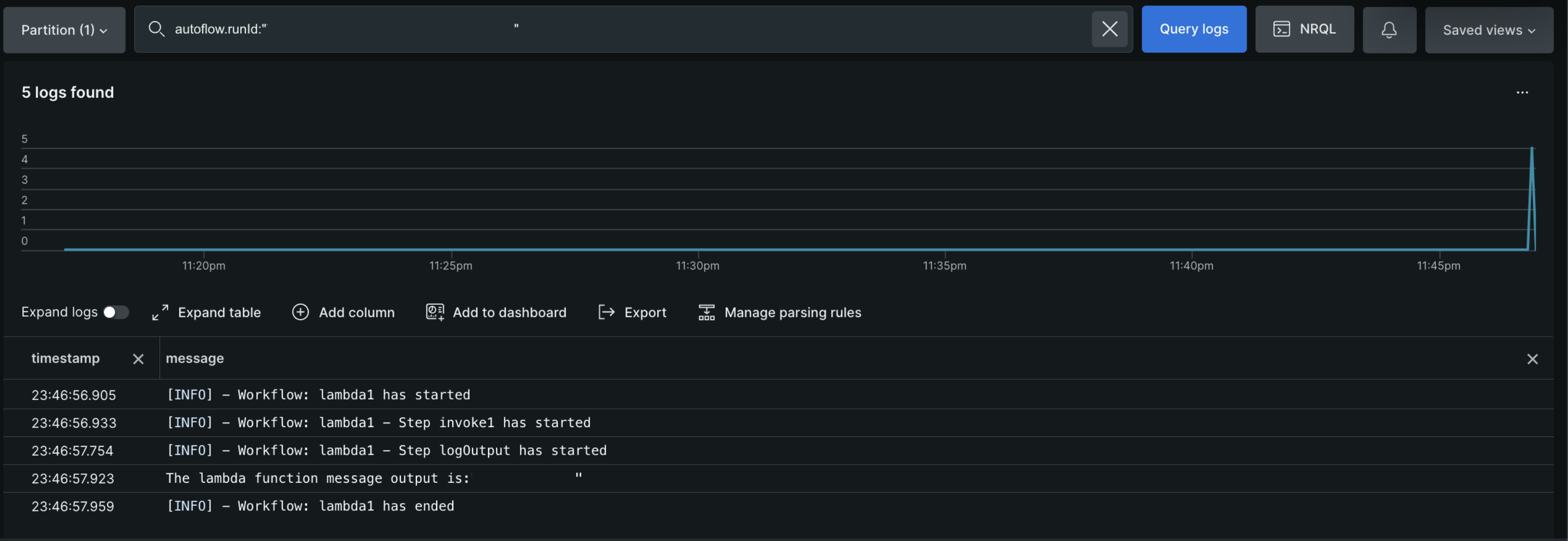
The mutation returns a runId (for example, 7bd25287-2af8-42e1-b783-80f4e760a40b). Use this ID to query the logs and view the output:
Schedules
Manage scheduled executions for this workflow:
- View all active schedules
- Create new schedules
- Delete existing schedules
Use the CreateSchedule API to schedule workflows to run automatically at specific times. Scheduled workflows run recurring tasks without manual intervention.
重要
Disabling Workflow Automation? If you plan to turn off Workflow Automation through Feature Control Management (FCM), remove all scheduled workflows first to prevent confusion or alerts. See Disable Workflow Automation for detailed steps.
When to schedule workflows:
- Regular health checks
- Periodic data processing
- Daily/weekly reports
- Scheduled maintenance windows
- Recurring backups or cleanups
Cron expression reference
Schedules use cron expressions to define when workflows run. Format: minute hour day month weekday
Pattern | Description | Example use case |
|---|---|---|
| Every day at 9:00 AM | Daily morning health checks |
| Every weekday at 9:00 AM | Business day operations |
| Every 6 hours | Regular sync operations |
| First day of month at midnight | Monthly reports |
| Every 10 minutes (minimum interval) | Frequent polling, health checks |
| Every Sunday at midnight | Weekly cleanup tasks |
重要
Minimum schedule interval: Schedules must be at least 10 minutes apart. You cannot schedule workflows to run more frequently than every 10 minutes. For sub-10-minute intervals, consider scheduling every 10 minutes and using a wait step within your workflow. See workflow limits for all scheduling constraints.
ヒント
Cron syntax: * means every, / means every nth, - means range. Example: 0 9 * * 1-5 = At minute 0, hour 9, every day, every month, Monday through Friday.
Example: Schedule a daily health check
The following example schedules the lambda1 workflow to run every day at 9 AM Eastern Time:
mutation { workflowAutomationCreateSchedule( scope: {type: ACCOUNT, id: "1"} definition: {name: "outdated_agents_multiple_nrql", version: 22} workflowInputs: [{key: "emailDestinationId", value: "04ea4bf6-e52a-4df1-bd5d-9c0271652a93"}, {key: "accountId", value: "1"}] timezone: "America/New_York" cronExpression: "0 12 * * *" ) { scheduleId } }What you get back: scheduleId, Unique identifier for the schedule (use this to update or delete the schedule later)
Workaround: Sub-10-minute intervals
If you need to check something more frequently than every 10 minutes, schedule your workflow at the minimum 10-minute interval and use a wait step within the workflow definition to create additional polling intervals.
Example workflow with 5-minute polling:
name: frequent-health-check
  steps:    # First check happens immediately when scheduled    - name: firstCheck      type: action      action: newrelic.nrdb.query      version: 1      inputs:        query: "FROM Transaction SELECT count(*) WHERE appName = 'MyApp' SINCE 5 minutes ago"
    # Wait 5 minutes    - name: waitStep      type: wait      seconds: 300
# Second check happens 5 minutes after the workflow started - name: secondCheck type: action action: newrelic.nrdb.query version: 1 inputs: query: "FROM Transaction SELECT count(*) WHERE appName = 'MyApp' SINCE 5 minutes ago"Schedule this workflow to run every 10 minutes using */10 * * * *. This gives you effective 5-minute polling:
- 0:00 - Workflow starts, runs firstCheck
- 0:05 - secondCheck runs (after wait step)
- 0:10 - Next scheduled workflow starts, runs firstCheck
- 0:15 - secondCheck runs (after wait step)
ヒント
Workflow duration limit: Remember that workflows have a maximum duration of 7 days. Design your wait steps and polling frequency accordingly. See workflow limits for details.
Manage schedules
After creating a schedule:
- View active schedules: See all scheduled runs in the Schedules tab on this Entity Overview page
- Update schedule: Use the UpdateSchedule API to change frequency or inputs
- Delete schedule: Use the DeleteSchedule API to stop recurring runs
For complete API documentation, see Workflow Automation APIs.
Settings
View workflow configuration:
- Display workflow settings and parameters
- Configuration information only (editing is done through the editor)
Run workflows from this page
To manually execute a workflow from the entity overview page:
- Click Run workflow
- The workflow executes immediately
- After execution completes, click View logs to see the execution details in the Logs tab
To edit a workflow, click the Edit button to open the workflow in the editor.
ヒント
When alert conditions are breached, New Relic can automatically trigger workflows by configuring Workflow Automation as a destination. The issueId and accountId are passed automatically. See Send notifications from workflows for setup instructions.
Related topics
Manage workflows
View dashboard and manage all workflows
Create schedule API
Create schedules programmatically via NerdGraph
Start workflow run API
Trigger workflows on-demand via API
Workflow limits
Understand schedule frequency and execution limits
Troubleshooting
Debug workflow execution errors and failures