Build custom workflows from scratch when templates don't meet your needs. Use the create your own builder to drag and drop actions from the actions catalog into automation that matches your process.
How to use this guide
This guide shows you how to build workflows using concepts and a complete example. Choose your learning path:
- Learn core concepts first: Read Core concepts and workflow patterns to understand the fundamentals, then apply them
- Follow the example: Jump to Example walkthrough to build an EC2 auto-resize workflow step-by-step
- Reference patterns: Use the workflow patterns section as a quick reference when building your own workflows
Why build custom workflows?
Build your own workflow to:
- Implement unique business logic that templates don't support
- Integrate multiple systems beyond standard templates
- Handle complex decisions with conditional branching
- Match your team's process for approvals and notifications
Core concepts
Understand these fundamentals before you build:
Concept | Purpose |
|---|---|
Parameters for credentials and configuration | |
Pre-built integrations (AWS, Slack, databases, APIs) | |
Pass outputs between steps | |
Initialize and assign values to variables for use in subsequent steps | |
Create different paths based on conditions | |
Process lists or poll for completion | |
Range | Required parameter for loop functions to define iteration count |
Pauses workflow execution for a specified duration or until a condition is satisfied | |
Stop | Terminate workflow execution |
Tip
Learn by doing: Each concept is demonstrated in the example walkthrough. You'll see inputs, switches, loops, and approval gates working together in a real workflow.
Syntax examples
Use these patterns when building workflows:
Pattern | Syntax | When to use |
|---|---|---|
Retrieve secret |
| Access credentials from secrets manager |
Reference workflow input |
| Use configuration provided when workflow starts |
Use previous step output |
| Pass data between workflow steps |
Drag action from catalog | Drag | Add pre-built integrations to workflow |
Create variable |
| Store calculated or intermediate values |
Check condition |
| Route by |
Loop over items |
| Process lists or poll for completion |
Define iteration count |
| Required parameter for loop functions |
Pause execution |
| Pauses workflow for specified duration |
End workflow | Terminate workflow execution | Ends workflow after validation failures or cancellations |
For detailed error handling patterns, see Best practices.
Important
For security and privacy best practices and limitations, including data deletion, see security best practices.
Quick start
Build your first workflow in five steps:
- Navigate to one.newrelic.com > All Capabilities > Workflow Automation and select Create Your Own
- Define parameters for credentials (from secrets manager:
${{ :secrets:keyName }}), configuration (regions, instance types), and runtime data (account IDs, alert IDs) - Drag actions from the catalog, connect them with
${{ .steps.stepName.outputs.field }}syntax to pass data - Insert switches for conditional branching, loops for processing lists or polling, approval gates for human decisions
- Run after each section to catch errors early, then start or schedule your workflow
Key workflow patterns
Four essential patterns handle most automation scenarios. Each pattern is demonstrated in the example walkthrough below.
Conditional branching with switches
Use switches when: Outcomes vary based on data (threshold checks, API responses, user decisions)
Key syntax:
- name: hasCompleted type: switch switch: - condition: "${{ .steps.waitForCompletion.outputs.automationExecutionStatus == 'Failed' }}" next: displayError - condition: "${{ .steps.waitForCompletion.outputs.automationExecutionStatus == 'Success' }}" next: displaySuccess next: displayUnexpected # Default path when no condition matchesExample: Handle team response, Verify and clean up
Loops for processing lists
Use loops when: Processing multiple items or repeating actions
For detailed information about loop structure, parameters, and advanced usage (including break/continue), see Loop structure.
Key syntax:
# Send progress updates using range loop - name: progressLoop type: loop for: in: "${{ [range(1; 5)] }}" # Loop 5 times steps: - name: wait type: wait seconds: 10 - name: progressMessage type: action action: slack.chat.postMessage version: 1 inputs: channel: "${{ .workflowInputs.channel }}" text: "Resizing in progress..."Example: Execute the resize
Approval gates and waiting
Use approval gates when: Human judgment is needed before destructive operations or compliance sign-off is required
Key syntax:
- name: requestApproval    type: action    action: slack.chat.postMessage    version: 1    inputs:      channel: "#approvals"      text: "Approve? React with :thumbsup: or :thumbsdown:"
  - name: getReactions    type: action    action: slack.chat.getReactions    version: 1    inputs:      token: "${{ .workflowInputs.slackToken }}"      channelID: "${{ .steps.requestApproval.outputs.channelID }}"      threadTs: "${{ .steps.requestApproval.outputs.threadTs }}"      timeout: 300  # Wait 5 minutes for reaction
- name: checkApproval type: switch switch: - condition: '${{ .steps.getReactions.outputs.reactions | any(.name == "+1") }}' next: handleApproval - condition: '${{ .steps.getReactions.outputs.reactions | any(.name == "-1") }}' next: handleRejectionFor simple delays:
- name: waitBeforeRetry type: wait seconds: 60 # Wait 60 seconds before continuingExample: Request team approval
Passing data between steps
Use data passing when: One step's output becomes another's input (the foundation of all workflows)
Key syntax:
# Reference previous step outputs awsRegion: "${{ .inputs.region }}" instanceId: "${{ .steps.getAlert.outputs.data.entity.instanceId }}"Example: All workflow steps
Variable assignment with assign
The assign step type allows you to initialize and assign values to variables that can be used in subsequent workflow steps. This step supports multiple data types including strings, integers, booleans, maps (objects), and lists (arrays).
Basic structure:
- name: <step_name> type: assign inputs: <variable_name>: <value_or_expression>Example:
- name: variableInitialization type: assign inputs: stringVar: "${{ .workflowInputs.initialValue }}" intVar: "${{ .workflowInputs.anotherValue }}" concatenationVar: "${{ .workflowInputs.initialValue }} - concatenated" booleanVar: true mapVar: key1: "value1" key2: "${{ .workflowInputs.initialValue }}" listVar: - "listItem1" - "${{ .workflowInputs.initialValue }}" - "${{ .workflowInputs.anotherValue }}" statusCode: ${{ .steps.runAction.outputs.statusCode }}Tip
Want complete pattern examples? See Workflow examples for additional patterns including error handling, retries, and complex integrations.
Example walkthrough: Auto-resize EC2 with approval
This example builds a workflow that resizes EC2 instances when CPU spikes—after getting team approval via Slack. It demonstrates data gathering, conditional logic, external integrations, and error handling.
Tip
New to workflows? This example uses AWS, Slack, and approval logic. Try Send report to Slack first if you're just starting.
Workflow overview
High-level flow:
- Gather data: Fetch alert and instance details from New Relic
- Request approval: Send Slack message, wait for team response
- Execute resize: Use AWS Systems Manager to resize EC2 instance
- Verify and clean up: Check results, notify team, remove temporary resources
Prerequisites
Before building this workflow, ensure you have:
- AWS: Credentials with EC2 and Systems Manager permissions
- Slack: Bot token and channel for notifications
- New Relic: Alert condition monitoring EC2 CPU
- Secrets manager: Configured, see secrets manager
Build the workflow step-by-step
Build each part of the workflow. Each step includes specific actions and demonstrates workflow patterns.
Gather alert context
Query APIs and databases to gather complete context before taking action.
Three actions collect alert and EC2 instance information:
getAlertDetails: Calls NerdGraph API to fetch alert metadata—activation time, condition name, and affected entities.activatedDateTime: Converts timestamp to readable format (e.g., 01-24-2025 14:30) for Slack messages.impactedEC2Instance: Queries NRDB to find EC2 instance ID and current type.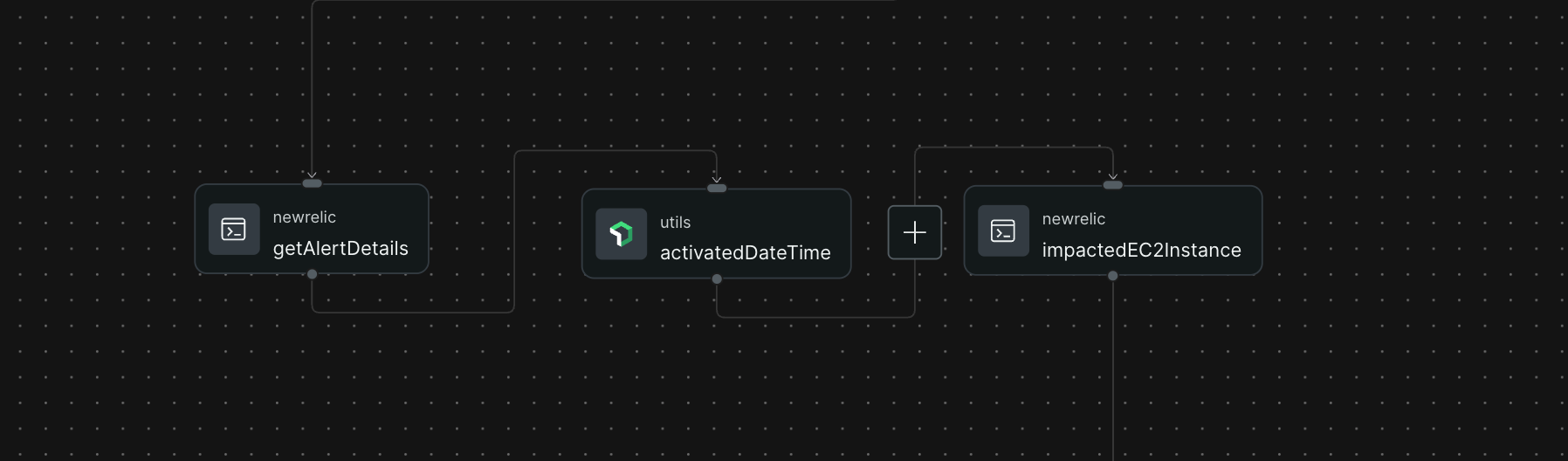
Why this matters: Without these details, you can't construct meaningful Slack messages or target the right EC2 instance.
Request team approval
Connect to collaboration tools for human decision points.
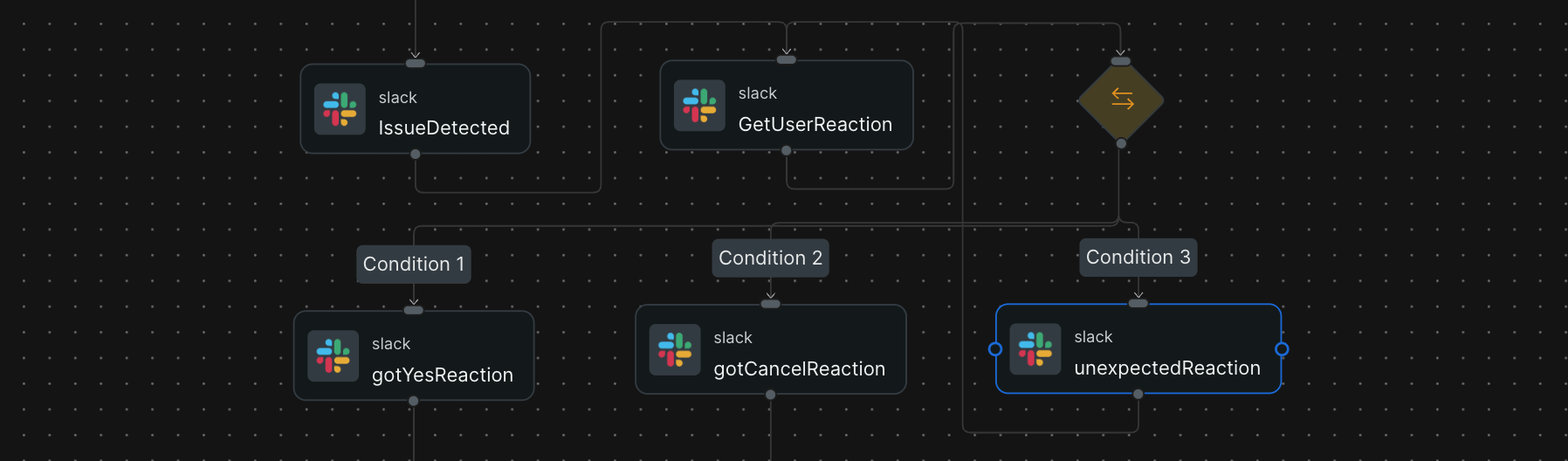
Send details to Slack and wait for response:
IssueDetected: Posts alert details, current instance type, and proposed resize. Asks team to react with:+1:(approve) or:-1:(cancel).GetUserReaction: Pauses for 5 minutes waiting for a reaction.checkQuery(Switch): Routes based on reaction::+1:→ Start resizing:-1:→ Stop workflowOther → Prompt for valid reaction, loop back
Handle team response
Create different paths based on data values or user input.
Branch based on the reaction:
unexpectedReaction: Explains valid reactions and loops back to wait again.gotCancelReaction: Confirms cancellation, skips to completion. No infrastructure changes.gotYesReaction: Confirms approval, proceeds to resize.Tip
Approval gates pattern: Use switches like this when you need human judgment before risky changes. The pattern works with Slack reactions, PagerDuty acknowledgments, email responses, or custom webhooks.
Execute the resize
Prevent duplicate operations with unique tokens. Check long-running operations with loops.
Resize the instance through AWS Systems Manager (SSM):
createSsmDocument: Creates SSM Automation document that stops the instance, modifies type, and restarts it.generateIdempotencyToken: Creates unique UUID to prevent duplicate resizes.startResizing: Executes SSM document with instance ID and new type.progressLoop(Loop): Posts Slack updates every 10 seconds (5 times).waitForCompletion: Polls SSM status with 2-minute timeout.Important
Why SSM? Systems Manager provides error handling, state verification, and CloudTrail audit logs. Better than direct EC2 API calls.
Verify and clean up
Clean up temporary resources regardless of outcome.
Check results and remove temporary resources:
hasCompleted(Switch): Branches on SSM status (success/failed/timeout).displaySuccess: Logs success to New Relic.sendSuccessMessage: Confirms completion in Slack.displayError: Logs error details for troubleshooting.displayUnexpected: Logs unusual states (manual cancellation, etc.).cleanupSsmDocument: Deletes temporary SSM document.sendSSMCleanMessage: Confirms cleanup in Slack.workflowCompleted: Final completion message (runs for success or cancel).
Complete parameter reference
This workflow requires credentials, configuration, and runtime context as inputs. Sensitive values come from secrets manager using ${{ :secrets:keyName }} syntax.
Input categories:
- Authentication: AWS and Slack credentials
- Alert context: Account ID and issue ID from New Relic
- Configuration: Region, instance type, timezone, Slack channel
Parameter name | Type | Default value | Description |
|---|---|---|---|
| String |
| AWS Access Key ID for authenticating with AWS services. |
| String |
| AWS Secret Access Key. Pairs with the access key ID. |
| String |
| Session token for temporary AWS credentials (optional, used with IAM roles). |
| String |
| Bot token for posting messages and reading reactions in Slack. |
| Int | Required | Your New Relic account ID. Used for querying alert details and entity data. |
| String | Required | The issue ID from the New Relic alert that triggered this workflow. Provided automatically when the workflow runs from an alert. |
| String |
| AWS region where your EC2 instance runs (for example, |
| String |
| Target EC2 instance type for resizing. Choose based on your performance needs and budget. |
| String |
| Time unit for the alert timestamp. Typically |
| String |
| Timezone for displaying alert activation time in Slack messages (for example, |
| String |
| Date/time format pattern for displaying timestamps. Uses Java SimpleDateFormat patterns. |
| String | Required | Slack channel ID (not name) where notifications are posted. Find this in Slack's channel details. |
Next steps
After completing this example, explore these resources:
Set up AWS credentials
Configure IAM roles for EC2 and other AWS actions
Actions catalog
Explore all available actions for workflows
Workflow examples
See examples for HTTP APIs, Slack integrations, and more
Best practices
Learn error handling, retry logic, and security patterns
Workflow entity overview
Trigger your workflow manually, from alerts, or on a schedule
Manage workflows
Edit, duplicate, and monitor workflow execution
Troubleshooting
Common issues and solutions for custom workflows