Important
Agent Control and New Relic Control are generally available for Kubernetes. Support for Linux and Windows hosts is in public preview program, pursuant to our pre-release policies.
Overview
Agent Control simplifies the management of your instrumentation agents. This guide will walk you through the process of installing and uninstalling Agent Control on your Kubernetes clusters, Linux hosts, or Windows hosts using different methods.
Install Agent Control
tip
For automating Agent Control setup across large-scale infrastructure, see Set up Agent Control with Terraform.
Guided install
- Log in to New Relic.
- Ensure the correct account is selected.
important
To install Agent Control, it is mandatory to have a fleet. If you haven't yet created a fleet for this managed entity, you can create a fleet during the instalaltion in the Guided Install or complete the fleet creation process in New Relic Control, and then return to this guided installation step.
In Integrations & Agents, click Install Agent Control or search for Agent Control.
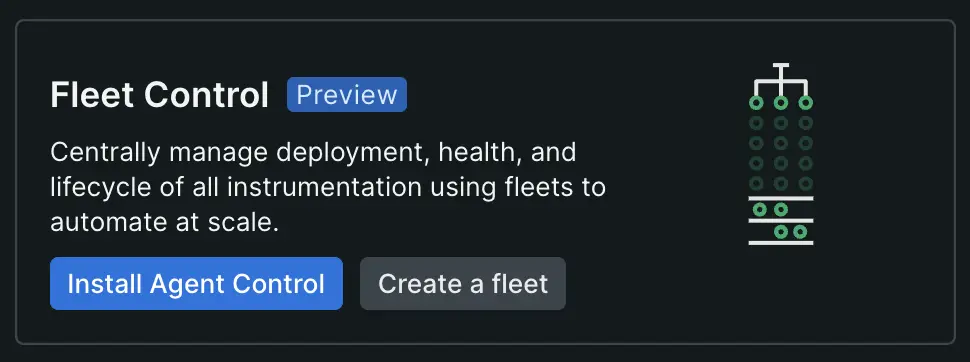
Follow the steps to complete the installation and configuration process.
tip
To install Agent Control, it is mandatory to have a fleet. If you haven't yet created a fleet for this managed entity, you can create a fleet during the installation in the Guided Install or complete the fleet creation process in Fleet Control, and then return to this guided installation step.
- Download the generated configuration to your computer and run the provided command in your terminal to install Agent Control. After installation, click Continue.
- Test the connection to confirm the installation was successful. This step may take 5-10 minutes to complete.
Windows installation notes
Installation method: Agent Control for Windows is installed using PowerShell scripts. MSI or MSIX installers are not currently available. You'll need to run the provided PowerShell installation script with Administrator privileges.
Fleet type requirement: For Windows hosts, you must select or create a fleet of type "Host - Windows" during the guided installation. Using a fleet of a different type (such as "Host - Linux") will cause installation or operation issues.
Agent version requirements: Ensure you select compatible agent versions during installation:
Infrastructure Agent: version 1.71.0 or higher
NRDOT (OpenTelemetry Collector): version 1.5.0 or higher
Templates and configurations from Linux environments may require adjustments for Windows compatibility.
Existing agents: If you have the New Relic Infrastructure Agent already installed on your Windows host, you must uninstall it before installing Agent Control. Agent Control does not support automatic migration of existing agents on Windows. After installing Agent Control, you can manage the Infrastructure Agent through Fleet Control. APM agents (which are not currently managed by Agent Control on Windows) can remain installed and will continue to operate independently.
Note about Authentication
New Relic Control requires the use of system identities, which are non-human identities used to authenticate and establish trust between services and applications.
During the Agent Control guided installation process, the first system identity is created using client credentials, which are included in the Helm chart's values. The credentials for this system identity expire after 12 hours. When they expire, the Agent Control Helm chart deployment will fail to authenticate with the Fleet Control service, resulting in the following error:
Error getting system identity auth token. The API endpoint returned 400: Expired client secret.In this case, the Helm chart must be updated with new system identity credentials.
global: cluster: "cluster-name" licenseKey: "*************************"agentControlDeployment: chartValues: systemIdentity: organizationId: "00000000-0000-0000-0000-000000000000" parentIdentity: clientId: "CLIENT_ID" clientSecret: "CLIENT_SECRET" config: fleet_control: fleet_id: "SAMPLE_FLEET_ID" agents: ...Verify Installation
Now that Agent Control is installed and running, you're ready to configure and manage your agents or deploy changes to your agents using Fleet Control](/docs/new-relic-control/fleet-control/overview).
Kubernetes
Run the following commands to check the status of your pods:
Agent Control installs subagents in a different namespace for security reasons. To verify that everything is working, check that the Agent Control pods are running in the
newrelic-agent-controlnamespace and the subagent pods are running in a different namespace, such asnewrelic.
$kubectl get pods -n newrelic-agent-control # Check Agent Control pods$kubectl get pods -n newrelic # Check subagent pods- Log in to New Relic, and go to Fleet Control.
- Go to the Fleets page and select the fleet you chose during installation.
- In the Entities table, confirm that your Kubernetes cluster appears in the list.
- Verify that the instrumentation status for your cluster is healthy.
Support for existing Flux installations
By default, the Agent Control Helm chart leverages an embedded instance of Flux CD to manage the lifecycle of your agents in Kubernetes. However, if your organization already utilizes Flux v2 for GitOps, you can configure Agent Control to leverage your existing installation.
This approach decouples Agent Control from the embedded continuous delivery engine, allowing you to maintain a single Flux instance for your cluster operations while still benefiting from Agent Control's management capabilities.
Requirements and compatibility
To use an external Flux installation with Agent Control, your environment must meet the following requirements. Configurations that deviate from these specifications are not validated.
- Flux Version: Flux v2 or higher.
- Required Components: Your Flux installation must include:
- Helm Controller: With the HelmRelease CRD (helm.toolkit.fluxcd.io/v2).
- Source Controller: With the HelmRepository CRD (source.toolkit.fluxcd.io/v1).
- Namespace Scope: Your Flux instance must be configured to watch the namespace where Agent Control will be installed (or configured to watch all namespaces).
Configuration
To enable this mode, you must explicitly disable the bundled Flux components in the Agent Control Helm chart configuration.
In your values.yaml file, set agentControlCd.enabled to false:
global:  cluster: "<YOUR_CLUSTER_NAME>"  licenseKey: "<YOUR_LICENSE_KEY>"
# Disable the embedded Flux instanceagentControlCd:  enabled: false
agentControlDeployment: chartValues: # ... other configurations ...Permissions for external Flux
When using your own Flux installation, the Flux Service Account in your cluster is responsible for applying the configurations generated by Agent Control. Therefore, your existing Flux instance requires specific permissions to deploy New Relic resources. We highly recommend one of the approaches below:
- Cluster Admin (recommended): The simplest configuration is to ensure your Flux instance runs with
cluster-adminprivileges. This is the standard configuration for the Flux community chart and ensures it can manage all necessary resources (Deployments, DaemonSets, Services, etc.) required by New Relic agents. - Least Privilege Configuration: If your security policies restrict the use of
cluster-admin, you must create a specificClusterRoleensuring your Flux Service Account has the permissions required by the Source Controller, Helm Controller, Agent Control, and every specific agent you plan to install.
Important
Note: Agent permissions may change as new features or agents are added. You are responsible for maintaining these permissions in your custom role.
Below is an example ClusterRole demonstrating the minimum permissions required for Agent Control and Flux components to interoperate:
apiVersion: rbac.authorization.k8s.io/v1kind: ClusterRolemetadata: name: external-flux-agent-control-rolerules: # Permissions required by Flux to operate Agent Control components - apiGroups: ["apiextensions.k8s.io"] resources: ["customresourcedefinitions"] verbs: ["get"] - apiGroups: ["coordination.k8s.io"] resources: ["leases"] verbs: ["get", "create", "update"] - apiGroups: ["rbac.authorization.k8s.io"] resources: ["clusterroles", "rolebindings"] verbs: ["get", "create", "delete"] - apiGroups: [""] resources: ["configmaps"] verbs: ["watch"] - apiGroups: [""] resources: ["events"] verbs: ["create", "patch"] - apiGroups: [""] resources: ["namespaces"] verbs: ["create"] - apiGroups: [""] resources: ["serviceaccounts"] verbs: ["get", "create", "delete"] - apiGroups: [""] resources: ["services"] verbs: ["get", "create"] - apiGroups: ["apps"] resources: ["deployments"] verbs: ["create"] - apiGroups: ["autoscaling"] resources: ["horizontalpodautoscalers"] verbs: ["get", "create"] - apiGroups: ["batch"] resources: ["jobs"] verbs: ["get", "list", "watch", "create", "delete"] # Permissions required by Agent Control logic - apiGroups: ["helm.toolkit.fluxcd.io", "newrelic.com", "source.toolkit.fluxcd.io"] resources: ["*"] verbs: ["*"] - apiGroups: [""] resources: ["secrets"] verbs: ["*"] - apiGroups: [""] resources: ["configmaps"] verbs: ["get", "list", "create", "patch", "update", "delete", "deletecollection"] - apiGroups: [""] resources: ["namespaces"] verbs: ["get"] - apiGroups: ["apps"] resources: ["daemonsets", "deployments", "statefulsets"] verbs: ["get", "list", "watch"]Support boundaries
When using an external Flux installation, New Relic support is limited to Agent Control software (the generation of valid configuration manifests). In this mode, you have to consider a shared responsibility schema as the following:
- New Relic Responsibility: We ensure that Agent Control correctly interacts with the New Relic backend and generates valid
HelmReleaseandHelmRepositorydefinitions. - Customer Responsibility: You are responsible for the health, version maintenance, networking, and troubleshooting of your own Flux installation. Issues arising specifically from the configuration or failure of the external Flux controllers are outside the scope of Agent Control support.
Linux
Check the status of the
newrelic-agent-controlservice:bash$sudo systemctl status newrelic-agent-controlIf the service appears in
FailedorStoppedstate, this means the agent got installed but there's an issue preventing its normal operation. Check the agent services logs usingjournalctl(or any similar Linux tool):bash$journalctl -u newrelic-agent-controlIf no insights are available, check how to run the agent in debug mode to access detailed logs to get more insight into why the service cannot be started.
If the service is not installed, try appending
--debugat the end of the install command and run it again. This will enable verbose logging for the installation script. See if the verbose output has additional context explaining the error.Optionally, answer
yeswhen asked to send logs to New Relic to help troubleshooting the installation. Once submitted, logs can be accessed with the following NRQL query:SELECT * FROM Log WHERE hostname = `your-host-name`
Windows
Pre-installation checklist
Before installing Agent Control on Windows, verify these prerequisites:
- Administrator privileges - Right-click PowerShell and select "Run as Administrator"
- PowerShell version - Verify PowerShell 5.0 or higher:$PSVersionTable.PSVersion
- Port availability - Ensure port 51200 is not in use:If the command returns no output, the port is available.netstat -ano | findstr :51200
- Infrastructure Agent removed - Uninstall the Infrastructure Agent if already installed:If this returns a service, uninstall the Infrastructure Agent first. APM agents can remain installed.Get-Service -Name newrelic-infra -ErrorAction SilentlyContinue
- Fleet created - Create a fleet with "Host - Windows" type in Fleet Control
- Network connectivity - Test access to New Relic services:Test-NetConnection -ComputerName download.newrelic.com -Port 443
- Antivirus configuration - Add exclusions (see security software notes below)
Antivirus and Security Software
Windows Defender or third-party antivirus software may block Agent Control from running as a service. Before installation, add these directories to your antivirus exclusions:
C:\Program Files\New Relic\newrelic-agent-control\C:\ProgramData\New Relic\newrelic-agent-control\If Agent Control fails to start after installation and runs successfully from the command line, this indicates antivirus interference. Work with your security team to configure appropriate exceptions for New Relic executables.
Verify Installation
Check the status of the
newrelic-agent-controlservice:Open PowerShell with Administrator privileges and run:
Get-Service -Name newrelic-agent-controlThe service should show status
Running. If the service appears inStoppedstate or does not exist, proceed with troubleshooting below.Verify the Agent Control health endpoint:
Invoke-WebRequest -Uri "http://localhost:51200/status" -UseBasicParsingA healthy Agent Control should return a JSON response with
"healthy": true.Log in to New Relic, and go to Fleet Control.
Go to the Fleets page and select the fleet you chose during installation.
In the Entities table, confirm that your Windows host appears in the list.
Verify that the instrumentation status for your host is healthy.
What to expect after installation
After running the installation script, Agent Control sets up the supervisor service only. No instrumentation agents are deployed automatically.
Immediate (0-2 minutes):
- 0-30 seconds: Agent Control service registers and starts
- 30-60 seconds: First connection to Fleet Control established
- 1-2 minutes: Configuration synchronization completes and host appears in Fleet Control
Next steps required: After Agent Control is installed and connected to Fleet Control, you must manually deploy agents to begin collecting telemetry:
- Log in to New Relic and navigate to Fleet Control
- Select your fleet and locate your Windows host in the Entities table
- Deploy agents (Infrastructure Agent, NRDOT, etc.) to your host using Fleet Control
- Wait 5-10 minutes for deployed agents to start and send telemetry to New Relic
Important
No telemetry by default: Agent Control is a supervisor service that manages agents. It does not collect or send telemetry data itself. To see infrastructure metrics, logs, or other telemetry in New Relic, you must deploy and configure agents (such as the Infrastructure Agent) through Fleet Control after installation.
If the Agent Control service doesn't connect to Fleet Control within 2-3 minutes, check the troubleshooting section below.
Service management commands
Manage the Agent Control Windows service with these PowerShell commands (run as Administrator):
Start the service:
Start-Service -Name newrelic-agent-controlStop the service:
Stop-Service -Name newrelic-agent-controlRestart the service:
Restart-Service -Name newrelic-agent-controlCheck service status:
Get-Service -Name newrelic-agent-control | Format-List Status, StartTypeExpected output when healthy:
Status : RunningStartType : AutomaticView service configuration:
Get-WmiObject -Class Win32_Service -Filter "Name='newrelic-agent-control'" | Format-List Name, State, StartMode, StartNameDirectory structure
Agent Control creates the following directory structure on Windows:
Program Files (Executables):
C:\Program Files\New Relic\newrelic-agent-control\├── newrelic-agent-control.exe # Main service executable├── uninstall.ps1 # Uninstallation script└── local-data\ └── agent-control\ └── local_config.yaml # Local configuration fileProgram Data (Runtime data):
C:\ProgramData\New Relic\newrelic-agent-control\├── fleet-data\│ └── agent-control\│ └── remote_config.yaml # Configuration synced from Fleet Control├── logs\│ └── newrelic-agent-control.log # Service logs├── filesystem\ # Managed agent configurations and data└── packages\ # Downloaded agent packages (cached)Log Location
Find Agent Control logs at:
C:\ProgramData\New Relic\newrelic-agent-control\logs\
Log files include date suffixes (e.g., newrelic-agent-control.log.2026-02-09-11).
View recent logs from the latest file:
Get-ChildItem "C:\ProgramData\New Relic\newrelic-agent-control\logs\" -Filter "newrelic-agent-control.log.*" | Sort-Object LastWriteTime -Descending | Select-Object -First 1 | Get-Content -Tail 100Windows-specific features
Log collection:
Windows hosts can collect logs through the Infrastructure Agent's integrated Fluent Bit. The Infrastructure Agent package includes Fluent Bit binaries for Windows, enabling you to configure log forwarding using the config_logging parameter in your agent configuration. Log configurations work similarly to Linux hosts but use Windows-specific paths and formats.
Configuration notes:
- File paths in Windows configurations use backslashes (
\\) and Windows-style paths (e.g.,C:\\ProgramData\\...) - Environment variables are set using Windows conventions
- Agent binaries use
.exeextensions - Configuration files are stored in the locations shown in the directory structure above
Configuration parameters
Key configuration parameters for Agent Control on Windows:
Parameter | Description | Default Location |
|---|---|---|
| Your New Relic license key (required) | Set in |
| Fleet Control fleet identifier (required) | Set in |
Installation directory | Agent Control executable location |
|
Configuration directory | Local and remote configuration files |
|
Data directory | Runtime data, managed agent files, logs |
|
Log directory | Service log files |
|
Health endpoint port | HTTP endpoint for status checks |
|
Service name | Windows service identifier |
|
Service account | Windows account running the service |
|
View current configuration:
Get-Content "C:\Program Files\New Relic\newrelic-agent-control\local-data\agent-control\local_config.yaml"Verify service configuration:
Get-WmiObject -Class Win32_Service -Filter "Name='newrelic-agent-control'" | Format-List PathName, StartName, StateSecurity Note
Agent Control runs with LocalSystem privileges on Windows to manage agent lifecycle operations. Ensure configuration files have appropriate permissions:
Program Files directory: Read/Execute for standard users, Write for Administrators only
ProgramData directory: Write restricted to Administrators and SYSTEM account
Only use configurations and agent sources from trusted origins. Agent Control can execute managed agents with elevated privileges.
Uninstall Agent Control
Kubernetes
To uninstall Agent Control from your Kubernetes cluster, run the following commands:
View installed releases
Run the following command to list all installed releases and identify the one for Agent Control:
$helm list --all-namespacesUninstall Agent Control
Replace
<RELEASE>and<NAMESPACE>with the appropriate values for your installation and environment:bash$helm uninstall <RELEASE> -n <NAMESPACE>For example:
bash$helm uninstall agent-control-bootstrap -n newrelic
Linux hosts
Important
The uninstall process typically leaves configuration and other miscellaneous files. Stopping the service beforehand is unnecessary. The uninstall process may take several minutes. Example of assets that might not be deleted as part of the uninstallation:
- Local or remote configuration files: review and remove
/etc/newrelic-agent-controland/var/lib/newrelic-agent-controlfolders. - New Relic CLI: review and remove
/usr/bin/newrelic-clibinary.
Execute the following command as root:
$sudo apt-get remove newrelic-agent-controlExecute the following command as root:
$sudo zypper -n remove newrelic-infraExecute the following command as root:
$sudo yum remove newrelic-agent-controlWindows hosts
Important
The uninstall process removes the Agent Control service and executable. Configuration and other miscellaneous files may remain. Example of assets that might not be deleted as part of the uninstallation:
- Configuration files: review and remove
C:\Program Files\New Relic\newrelic-agent-controlandC:\ProgramData\New Relic\newrelic-agent-controlfolders if needed.
To uninstall Agent Control from your Windows host:
Open PowerShell with Administrator privileges.
Navigate to the Agent Control installation directory:
cd "C:\Program Files\New Relic\newrelic-agent-control"Run the uninstall script:
.\uninstall.ps1This script will:
- Stop the
newrelic-agent-controlservice - Remove the service registration
- Delete the Agent Control executable
- Stop the
(Optional) Manually remove configuration directories if you want to completely remove all Agent Control data:
Remove-Item -Path "C:\Program Files\New Relic\newrelic-agent-control" -Recurse -ForceRemove-Item -Path "C:\ProgramData\New Relic\newrelic-agent-control" -Recurse -Force